
Quick Facts
- Manufacturer: ISAAC Instruments
- Equipment category: In-cab telematics, electronic logging, and driver workflow technology
- Core platform: ISAAC InControl
- Driver hardware: Dedicated rugged in-cab tablet and associated vehicle equipment
- Companion application: ISAAC Connect for supported smartphones
- Important distinction: ISAAC Connect complements the in-cab system; it does not replace it
- System selection: Hardware, software, integrations, and service configuration must be confirmed with ISAAC
- Pricing: Request a fleet-specific proposal
Overview
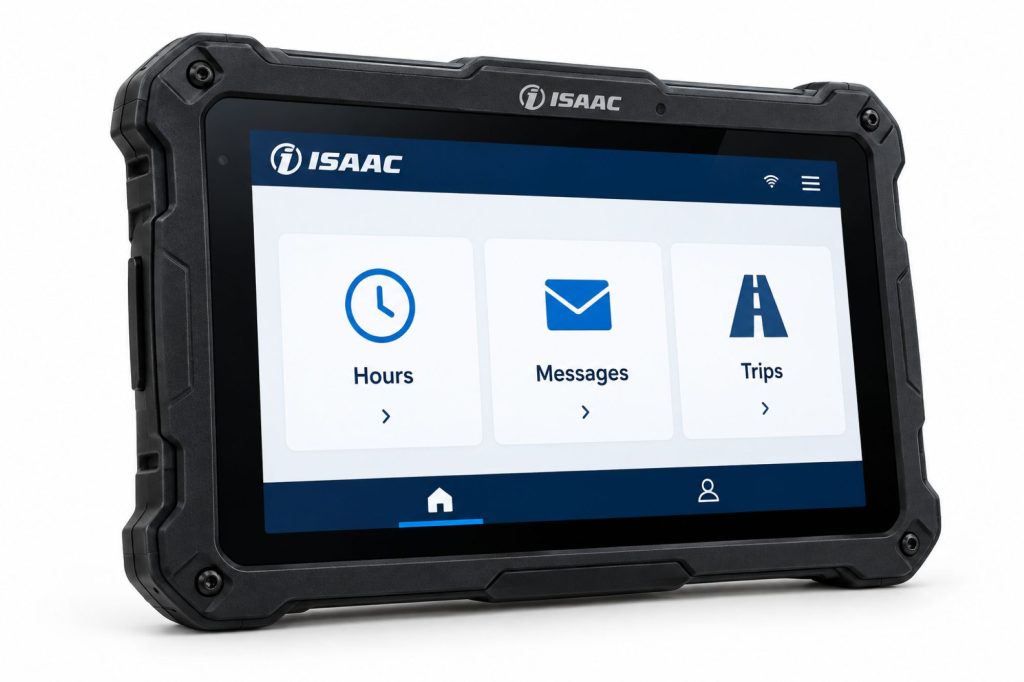
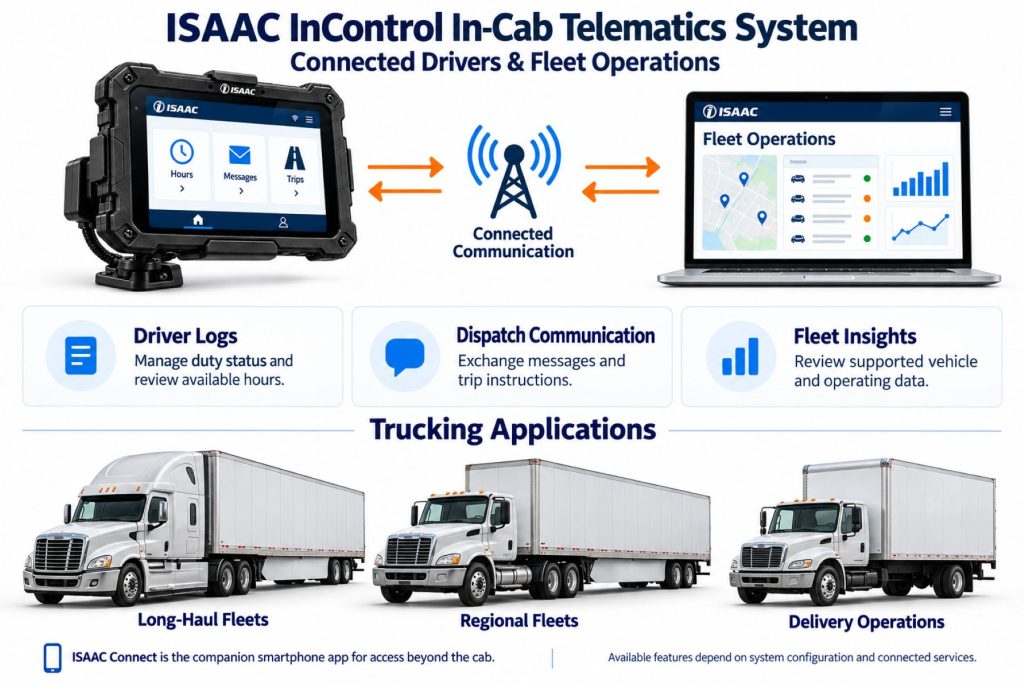
ISAAC’s in-cab system brings driver tasks and vehicle-connected fleet information into a managed technology environment. The tablet provides the working interface inside the truck, while fleet software and integrations connect those activities with the office.
ISAAC Connect adds smartphone access to selected information outside the cab. Buyers should evaluate the complete platform rather than treating the companion app as a standalone vehicle gateway or electronic logging device.
Key Characteristics
- Dedicated in-cab driver interface.
- Managed hardware and software arrangement.
- Separate companion access beyond the truck.
- Fleet-specific integration and workflow configuration.
- Installation and account requirements covering the complete system.
Major Components
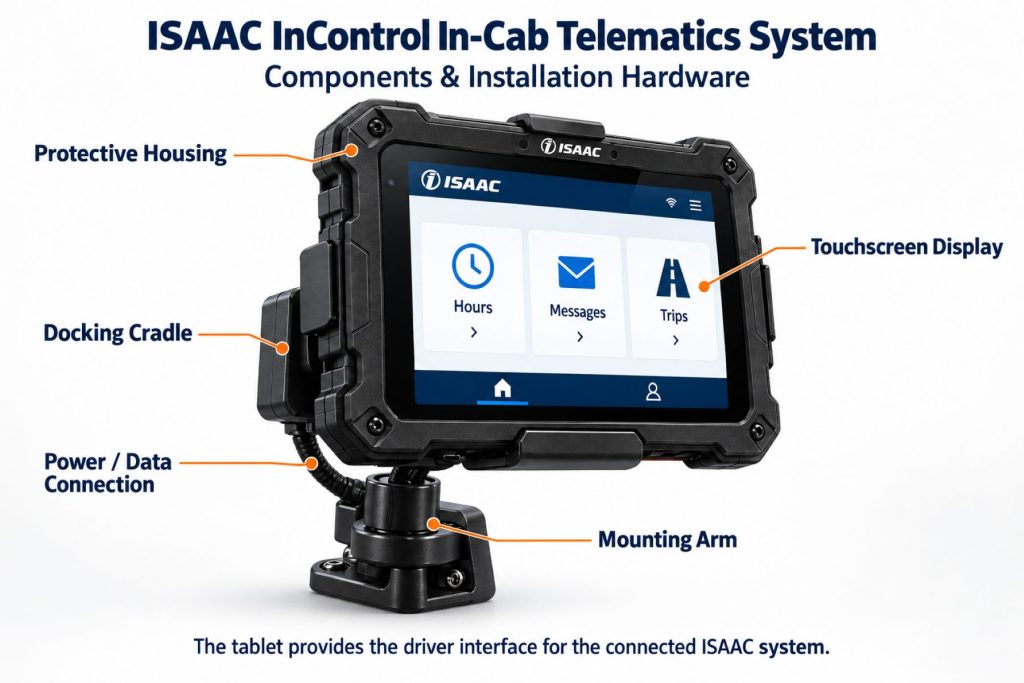
- Specified in-cab tablet and mounting equipment.
- Vehicle-connected telematics equipment and approved cabling.
- Fleet platform and enabled software.
- Driver and administrator accounts.
- ISAAC Connect on compatible smartphones where enabled.
- Optional integrations and separately specified equipment.
Product Type and Construction
This is a complete fleet technology arrangement rather than one universal hardware model. Identify the exact tablet, vehicle interface, mount, and connection equipment in the proposal before applying physical specifications.
Hardware, Software, and Platform Design
ISAAC describes its in-cab tablet environment as Android-based, with fleet-approved applications and platform integrations. Review application permissions, deployment responsibilities, and support arrangements before adding third-party functions.
How the Telematics or ELD System Works
The vehicle installation supplies supported operating information, and the driver completes enabled tasks through the in-cab interface. Fleet users review the corresponding records and workflows. Companion access extends selected functions without replacing the installed system.
Position and Function Within the Vehicle
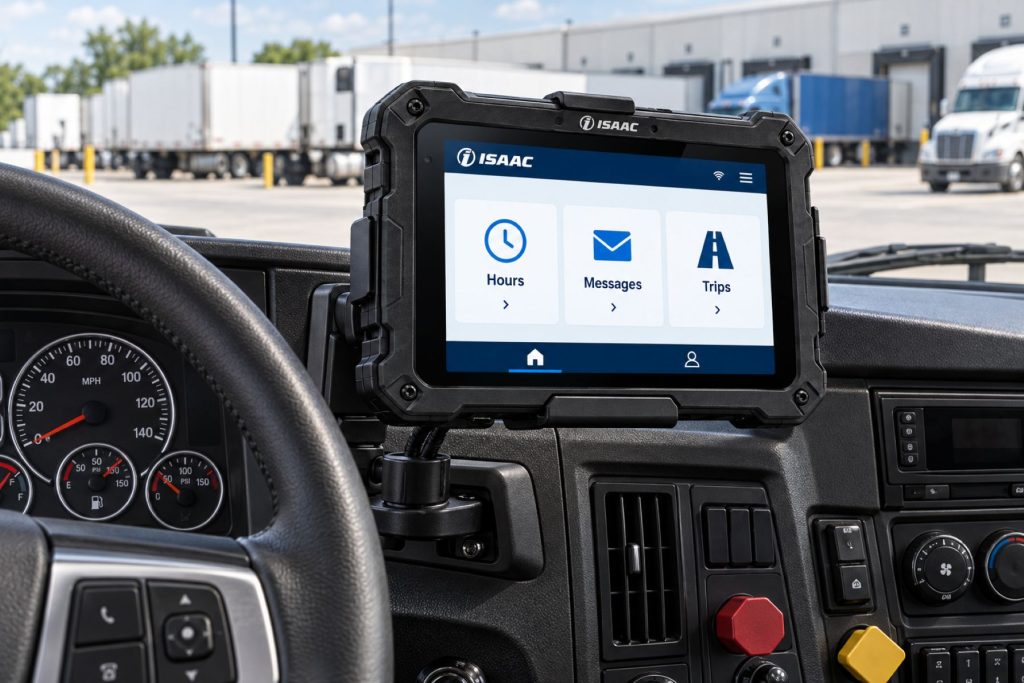
Position the tablet using the approved mounting instructions. Its location should support safe access while preserving visibility, control clearance, and cab entry. Vehicle-interface hardware and wiring need their own secure installation locations.
Common Specifications
- Tablet model: Confirm the equipment supplied in the proposal.
- Screen dimensions and resolution: Obtain the model-specific specification.
- Gateway and interface: Confirm the installed vehicle hardware.
- Electrical input: Verify each component’s requirements.
- Environmental ratings: Check the tablet, mount, interface, and connectors separately.
- Smartphone compatibility: Confirm supported operating-system versions.
- Published figures: Do not transfer specifications between hardware generations.
Operating Capacity and Performance
Evaluate the complete workflow on representative trucks and routes. Check driver task completion, reporting freshness, required measurements, and support response rather than relying solely on hardware specifications.
Installation Position and System Function
Review tablet access and vehicle-interface placement together. The mounting arrangement should remain stable through cab vibration and normal service activity without placing tension on charging or data connections.
System Voltage and Electrical Architecture
Verify the power requirements for every supplied component. Do not assume that a system-level product name establishes direct compatibility with either 12-volt or 24-volt supplies.
Electrical Input, Output, and Power Function
Plan for dependable power to the tablet and vehicle equipment. Include accessories in the electrical assessment and confirm expected behavior during ignition changes, extended parking, and battery isolation.
Data Collection and Vehicle Information
Identify the information required by dispatch, maintenance, and safety personnel. Have ISAAC confirm availability on the actual truck models and verify those measurements during commissioning.
GPS, Cellular, Wi-Fi, and Satellite Connectivity
Obtain a description of the supplied communication arrangement and its coverage. Smartphone access and in-cab communication may have different dependencies. Verify Wi-Fi, Bluetooth, or satellite requirements individually rather than assuming they are included.
Vehicle Network and Diagnostic Integration
Connection compatibility depends on the truck, model year, powertrain, and installed interface. Use the approved vehicle-specific instructions and confirm the required diagnostic functions before ordering.
Electronic Logging and Hours-of-Service Functions
ISAAC offers an in-cab electronic logging solution. Confirm the exact accepted hardware and software configuration for the intended jurisdiction. Smartphone visibility of hours should not be confused with replacing the required in-cab logging arrangement.
Driver Identification and User Access
Use individual accounts and consistent vehicle-selection procedures. Shared trucks need clear shift-change practices. Review access to both the tablet environment and companion application when employees change roles or leave.
Fleet Portal and Mobile Application
ISAAC Connect provides access to messages, trip instructions, HOS summaries, and selected reports and documents. Confirm which functions are enabled for the fleet and which tasks remain part of the in-cab workflow.
Dash Camera and Video Capabilities
ISAAC’s broader offering includes camera technology, but a tablet or companion-app installation should not be assumed to include it. Request the specific camera equipment, recording configuration, and service requirements separately.
Trailer and Asset-Tracking Capabilities
Independent trailer visibility requires an appropriate asset-tracking arrangement. Confirm any supported integration and its equipment requirements; a tractor’s installed system does not independently locate a disconnected trailer.
Remote Diagnostics and Fault-Code Management
Confirm the diagnostic information and alerts included in the proposed service. Use remote records to guide investigation, then assess vehicle symptoms and service information before deciding on repairs.
Driver Communication and Workflow Tools
The companion app lets drivers continue dispatch conversations away from the tablet and review upcoming assignments. Set clear expectations for communication timing, notifications, and the tasks drivers should complete while safely parked.
Alerts, Reports, and Fleet Analytics
Start with reports tied to specific operational decisions. Assign responsibility for reviewing exceptions and following up. Compare similar trucks and assignments when using records to assess driver or vehicle performance.
Data Storage, Transfer, and Retention
Confirm local availability, platform retention, exports, and integration access. Document which information remains accessible during communication interruptions and how records are preserved for later review.
Cybersecurity, Privacy, and User Permissions
Review administrator privileges, integration permissions, and smartphone access policies. Explain how fleet information is used and establish a procedure for lost devices, compromised credentials, and departing employees.
Materials and Component Construction
Evaluate the supplied tablet, mounting hardware, and vehicle interface using their individual specifications. Inspect the enclosure, screen, connector areas, and supporting brackets before installation.
Wiring, Terminals, Connectors, and Grounding
Use approved cables and the exact installation instructions. Protect wiring from abrasion and pinch points, and maintain strain relief at the tablet mount and vehicle connections.
Controls, Monitoring, and Diagnostics
Document device identifiers, software versions, error messages, and recent changes when requesting support. Distinguish tablet issues, account issues, and vehicle-data problems so troubleshooting addresses the affected part of the system.
Electronic Controls and Driver-Assistance Integration
Driver coaching and fleet information do not establish active control of braking or steering. Verify any proposed driver-assistance integration separately, including what it observes and what it controls.
Power Consumption and System Efficiency
Review operating and parked demand across all installed equipment. Include tablet charging, accessories, and extended storage conditions when assessing the vehicle’s battery-management arrangement.
Environmental Sealing and Contamination Protection
Obtain component-specific environmental ratings. Rugged construction does not establish that every connection can withstand liquid exposure or pressure washing. Follow approved cleaning and installation guidance.
Coverage, Connectivity, and Offline Operation
Test representative routes and clarify the offline behavior of each application. Information displayed on a smartphone may reflect its last successful synchronization. Drivers need a documented procedure for coverage gaps and unavailable functions.
Duty Cycle and Operating Conditions
Consider shared-driver use, daily tablet handling, cab vibration, parked periods, and service frequency. These conditions influence mounting choices, inspections, training, and replacement planning.
Mounting and Installation
Use the approved mounting assembly and verify clearance through normal seat and control adjustments. Secure all equipment and route cables so routine use cannot pull on connectors or obstruct driving controls.
Installation, Activation, and Account Setup
Coordinate equipment installation, account provisioning, application configuration, and training. Verify a representative trip and driver workflow before commissioning. Set up companion access after confirming the underlying account assignments.
Wiring, Grounding, and Installation Requirements
Apply the instructions for the actual truck and supplied interface. Qualified installers should resolve unfamiliar wiring and grounding arrangements. Record normal vehicle operation before and after commissioning.
Software Configuration and Vehicle Assignment
Use consistent truck names and verify equipment-to-vehicle assignments. Review driver access, notification settings, report units, and integration mappings before relying on operational records.
Vehicle, Network, and Platform Compatibility
Confirm the vehicle model year, powertrain, connection arrangement, and required measurements. Check smartphone support separately from tablet and vehicle-interface compatibility.
Related Component and System Compatibility
ISAAC supports TMS integrations and selected operational add-ons. Have the provider confirm the intended combination, data flow, deployment work, and additional costs before purchasing connected services.
Common Applications
- Commercial truck electronic logging.
- Dedicated in-cab driver workflows.
- Dispatch communication and trip coordination.
- Fleet reporting and supported integrations.
- Companion access to selected information outside the cab.
- Operations seeking a managed fleet technology arrangement.
Advantages
- Dedicated hardware for in-cab tasks.
- Companion access without replacing the installed system.
- Opportunities to connect driver workflows with office systems.
- Managed deployment and support options.
- Potential to consolidate selected operational tasks.
Limitations or Considerations
- ISAAC Connect is a companion application rather than standalone telematics hardware.
- Exact equipment specifications require model confirmation.
- Integration scope and deployment work vary by fleet.
- Smartphone access depends on supported devices and account configuration.
- Coverage affects the freshness of remotely displayed information.
- Additional services and equipment can increase total cost.
Driver and Operator Experience
Train drivers on the difference between in-cab tasks and companion access. Explain login, vehicle selection, record review, notification preferences, and support contacts using the actual configuration supplied to the fleet.
Controls, Indicators, and Driver Feedback
Review application prompts and any configured coaching feedback during training. Drivers should understand each important notification and know how to report unexpected behavior without interacting with the screen while driving.
Compliance and Record Management
Assign responsibility for reviewing driver records, resolving unassigned activity, and preserving required documentation. Keep the fleet’s procedures aligned with its accepted hardware and software configuration.
Subscription Plans and Ongoing Service Costs
Request a proposal covering hardware, installation, recurring service, training, integrations, and companion access. Review replacement provisions and contract terms when comparing total ownership cost.
Firmware, Software, and Map Updates
Clarify update responsibilities for installed equipment, applications, and integrations. Verify essential workflows after significant changes. Treat navigation subscriptions and map maintenance separately where navigation is included.
Data Accuracy and System Limitations
Investigate unusual records using timestamps, assignments, connection status, and operating context. Confirm when displayed information was last updated before using it for time-sensitive dispatch decisions.
Inspection and Wear Points
- Tablet mount and retention hardware.
- Screen and enclosure condition.
- Charging and data connections.
- Cable abrasion and tension.
- Vehicle-interface mounting.
- Changes following truck service.
- Correct driver and vehicle assignments.
Maintenance and Ownership Notes
Keep equipment identifiers, installation photographs, support contacts, and configuration records with the truck’s documentation. Recheck reporting after work that disturbs batteries, cab panels, or diagnostic connections.
Common Telematics and ELD System Problems
- Login problems requiring account checks.
- Delayed information requiring communication review.
- Missing measurements requiring installation or compatibility checks.
- Incorrect assignments affecting records.
- Integration mapping problems affecting trip workflows.
- Tablet charging or connection problems.
- Companion-app issues requiring device and version checks.
Safety and Service Precautions
Install and service equipment with the truck securely parked. Preserve control clearance and visibility. Follow the supplied instructions and use qualified support for wiring questions or unexpected vehicle behavior after installation.
Identification Information
Record tablet and interface identifiers, software versions, cable information, and assigned vehicles. Keep companion-app account details separate from physical hardware records while maintaining a clear support inventory.
Buying Considerations
- Identify the exact supplied hardware.
- Confirm vehicle compatibility and required measurements.
- Define in-cab and companion-app workflows.
- Review TMS and other integration requirements.
- Confirm accepted ELD configuration where required.
- Include installation, training, and recurring costs.
- Review support, replacement, and update responsibilities.
- Validate a representative installation before wider deployment.
Variants and Configurations
- In-cab configuration: Specified tablet, vehicle equipment, and enabled applications.
- Companion configuration: ISAAC Connect access on supported smartphones.
- Integrated configuration: Approved TMS and operational connections.
- Camera configuration: Separately specified video equipment and services.
- Fleet configuration: Permissions and workflows matched to operational needs.
Comparison to Similar Equipment
Compare ISAAC’s complete arrangement with other dedicated terminals and mobile-device-based systems. Consider driver usability, vehicle support, integrations, equipment management, support quality, and total cost.
Best Fit For
- Fleets seeking a dedicated in-cab driver interface.
- Operators evaluating a managed fleet technology solution.
- Businesses connecting driver workflows with office systems.
- Fleets wanting selected companion access outside the cab.
- Operations prepared to standardize training and account procedures.
Related Vehicle and Trailer Types
Related Truck and Trailer Models
Related Telematics and ELD System Types
- Electronic logging devices and HOS compliance
- Fleet telematics and vehicle gateways
- Driver communication and workflow systems
- Remote diagnostics and fleet intelligence
- AI dash cameras and video telematics
- Trailer and asset-tracking systems
Related Telematics and ELD Products
- Omnitracs Intelligent Vehicle Gateway
- Motive Vehicle Gateway
- Samsara Vehicle Gateway
- Geotab GO9 Telematics Device
- Motive Asset Gateway
- Samsara AG52 Asset Gateway
Related Equipment Systems
- Telematics and ELD systems
- Truck electrical systems
- Truck safety systems
- Truck brake systems
- ABS and electronic braking systems
- Tire pressure monitoring and inflation systems
Related Guides
- How Commercial Truck Telematics Systems Work
- Electronic Logging Devices and Hours-of-Service Compliance Explained
- How to Choose a Commercial Truck ELD and Telematics System
- GPS Fleet Tracking and Vehicle Telematics Explained
- AI Dash Cameras and Video Telematics Explained
- Commercial Trailer and Asset Tracking Systems Explained
Regulatory and Compliance Notes
Verify the exact logging system against current official requirements for the operating jurisdiction. Companion-app access does not establish that a phone is the accepted vehicle-connected ELD configuration.
Real World Operating Notes
A successful rollout connects installation, account setup, integrations, and driver training. Test normal dispatch activities and record review on representative trucks before expanding, then recheck workflows after significant configuration changes.
Frequently Asked Questions
Is ISAAC Connect the in-cab tablet?
No. It is the companion smartphone application for the core ISAAC platform.
Does the companion app replace the installed system?
No. It provides selected access beyond the cab while the installed equipment continues to serve the in-cab workflow.
Are all ISAAC installations physically identical?
Confirm the hardware and accessories in the fleet proposal. Do not assume one set of specifications applies to every installation.
Can the system connect with a transportation management system?
ISAAC offers supported integrations. Verify the particular system, workflow scope, and implementation requirements with the provider.
Does the tablet include fleet camera coverage?
Camera equipment and services must be specified separately in the proposed configuration.
How should a fleet evaluate pricing?
Compare the complete proposal, including equipment, installation, service, training, integrations, and replacement provisions.
Availability and Where to Find
Contact ISAAC Instruments for current equipment, compatibility confirmation, demonstrations, and fleet-specific pricing.
- ISAAC Instruments Official Website
- ISAAC Connect Driver Mobile App
- ISAAC In-Cab ELD Information
- ISAAC Platform Integrations
- Request ISAAC Pricing
Support Trucking Families
Truck Equipment Atlas supports the mission of Grey Cross, a nonprofit dedicated to helping families of truck drivers who lose their lives while on the road. As the site grows, part of its mission is to bring awareness and support to these families.
Podcast or Video Section
Learn More Through Audio and Video
Truck Equipment Atlas will continue expanding with podcast episodes, interviews, and equipment breakdowns to help drivers and fleets better understand trucks and equipment.
Follow the Growth of Truck Equipment Atlas
Truck Equipment Atlas continues to expand with new truck profiles, trailer coverage, diesel engine pages, equipment system resources, manufacturer information, and educational guides.
Visit our Site Updates page to explore recent additions, project milestones, and upcoming resources as we continue building one of the industry’s growing commercial trucking equipment reference libraries.
View the Latest Site Updates: Truck Equipment Atlas Site Updates